
Help & Documentation
Everything you need to run your affiliate and referral programs
EZ Affiliate & Referral runs two partner programs from one app: an affiliate program for influencers and creators paid by commission, and a referral program that turns your happy customers into partners automatically. This guide covers setup, tracking, commissions, payouts, and day-to-day management.
01
Getting started
When you first open the app, a six-step setup wizard walks you through everything needed to launch. You can change any of these choices later under Settings — nothing is locked in.
-
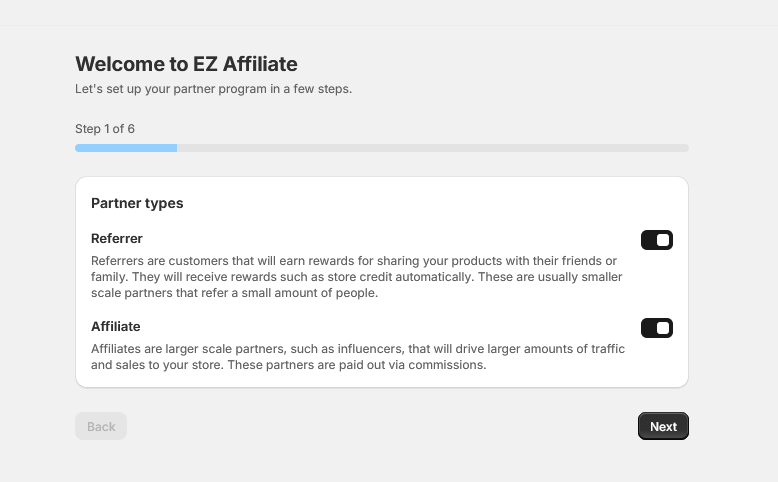
Choose your partner types
Turn on Referrers, Affiliates, or both. You can run either program on its own, or both side by side.
-
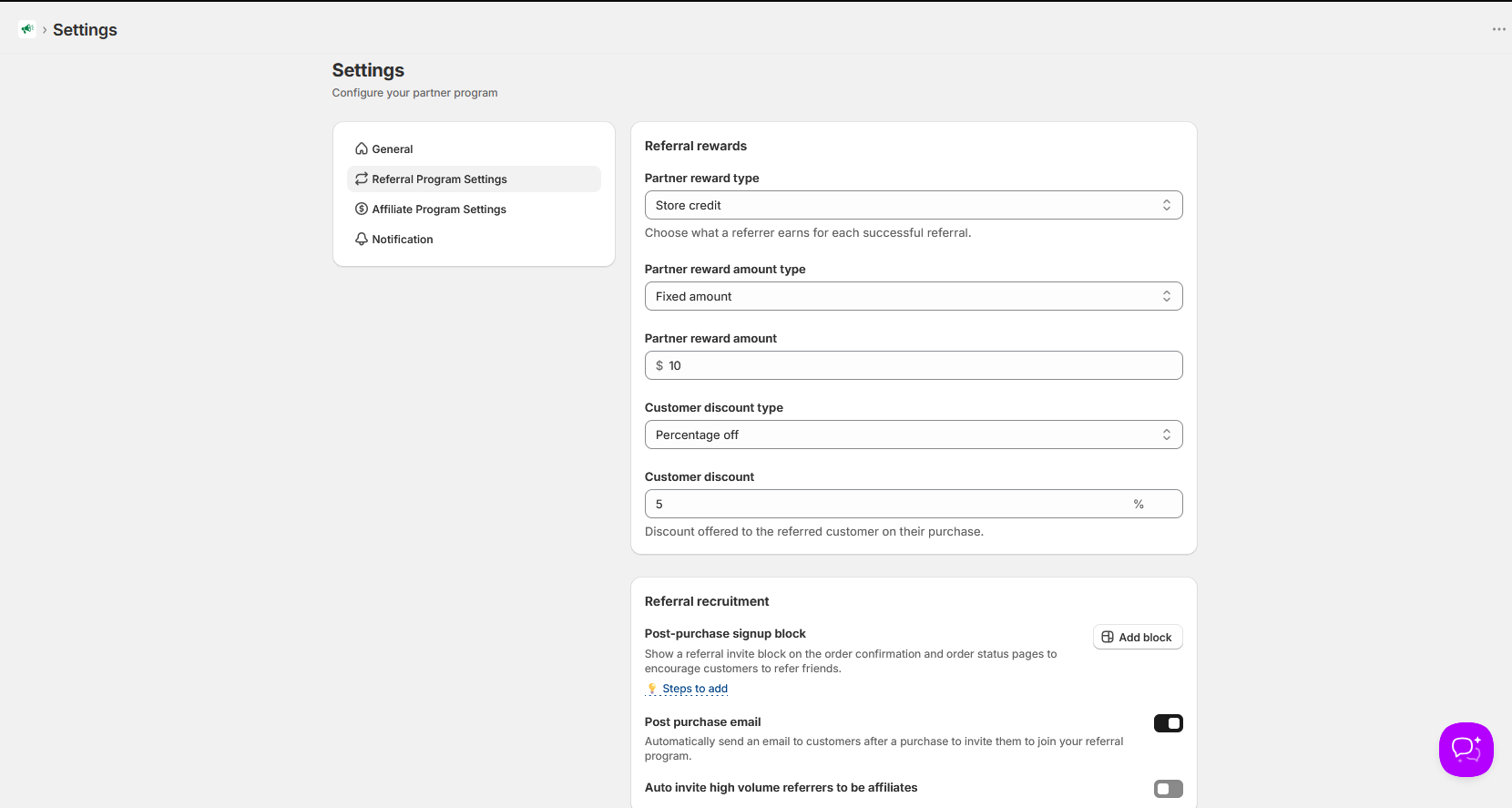
Set rewards for referrers
Choose what a referrer earns for each successful referral (for example, $10 in store credit) and the discount their friend receives (for example, 5% off).
-
Enable automated referrer recruitment
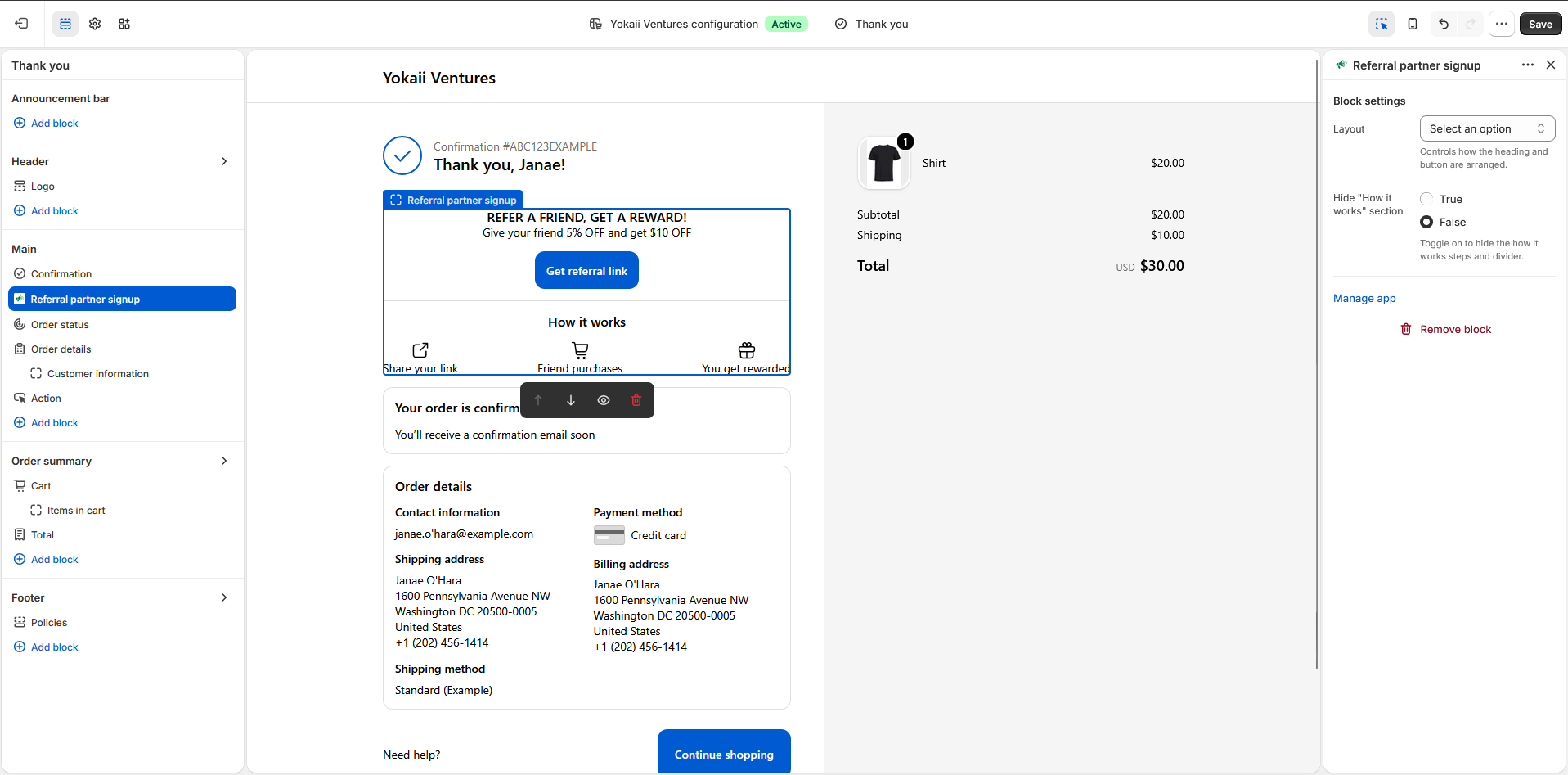
Add the post-purchase signup block to your order confirmation page and turn on the post-purchase email, so every customer is invited to refer friends right after buying.
-
Set affiliate commission & payouts
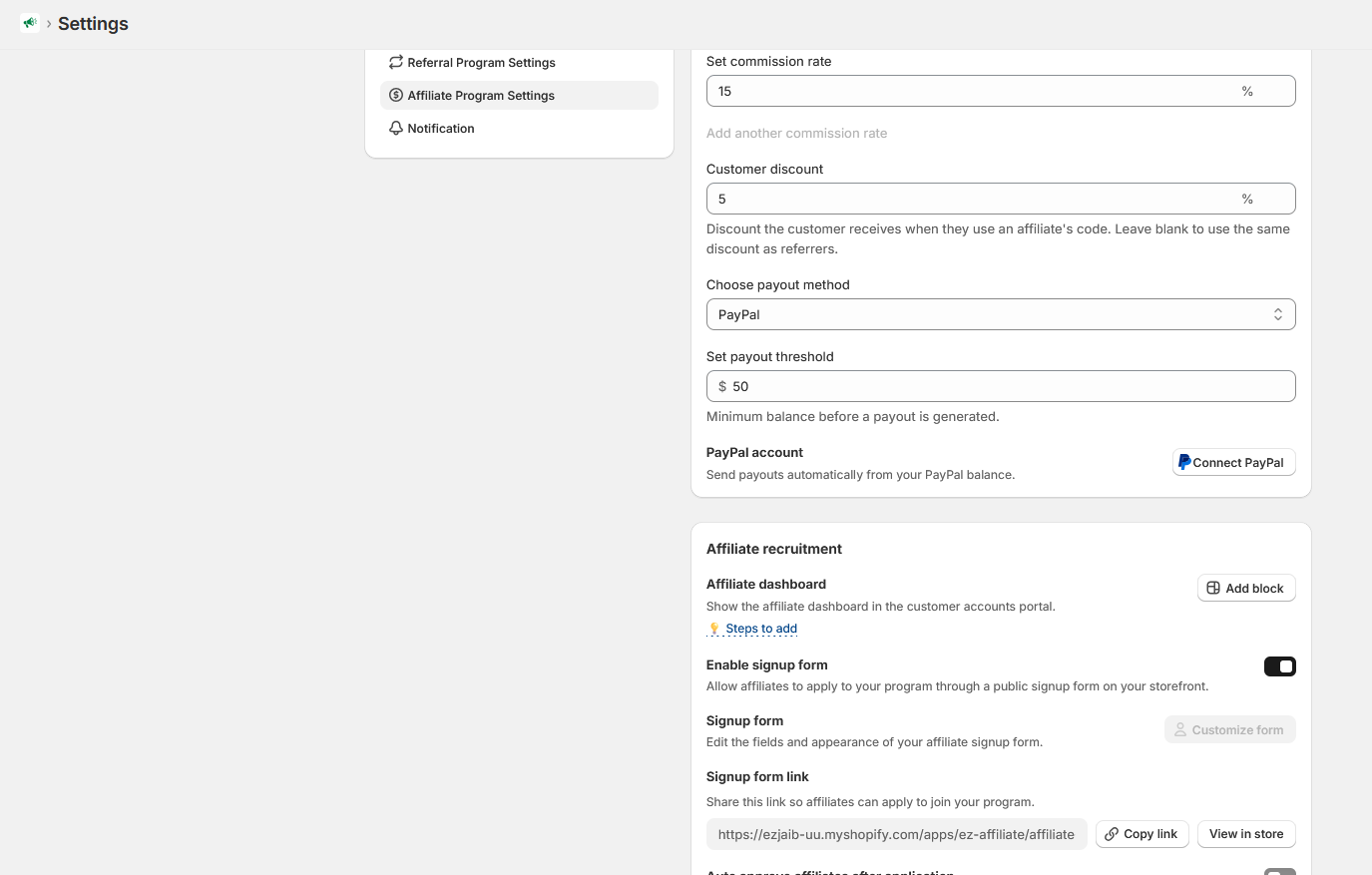
Set your commission rate, the discount your affiliates' customers receive, your payout method, and your payout threshold.
-
Set affiliate recruitment
Add the affiliate dashboard to your customer accounts portal, enable the public signup form, and copy your signup form link to share with prospective affiliates.
-
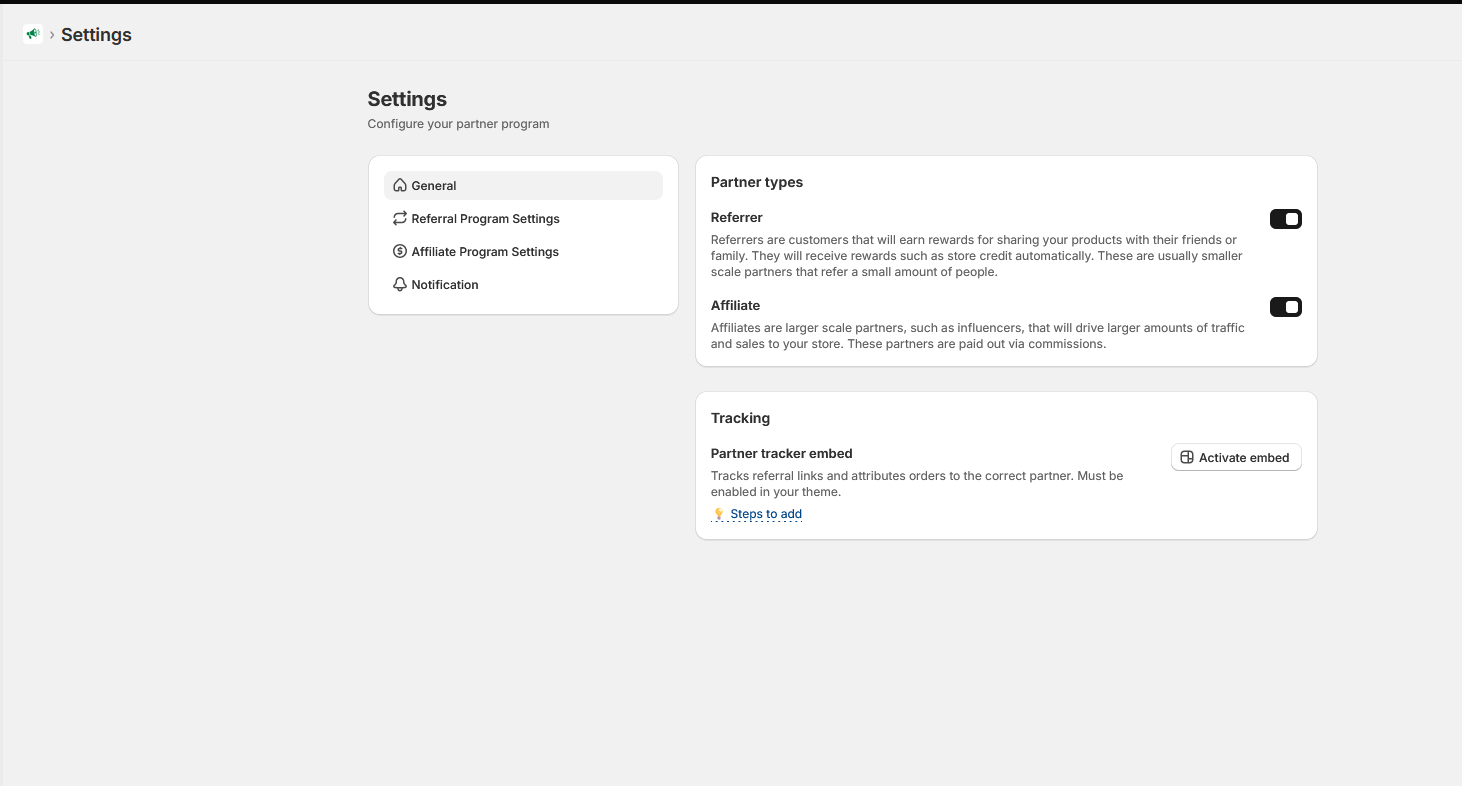
Activate the partner tracker embed
Enable the tracker embed in your theme. This is what tracks referral links and attributes orders to the correct partner.
Don't skip the tracker embed. Without it, referral links can't attribute orders to your partners and no commissions or rewards will be recorded. If orders aren't being tracked, this is the first thing to check — see Tracking & attribution.
02
The two programs: Affiliates and Referrers
Every partner in the app belongs to one of two programs. Understanding the difference helps you decide who to recruit into each.
| Referrers | Affiliates | |
|---|---|---|
| Who they are | Your existing customers sharing your products with friends and family | Larger-scale partners — influencers, creators, publishers — driving traffic at volume |
| How they're rewarded | Store credit (applied automatically) or a set discount on a product or collection, per successful referral | A commission on each attributed order, paid out via PayPal or bank transfer |
| How they join | Invited automatically after purchase (thank-you page block and post-purchase email), or invited by you | Apply through your public signup form, or added and invited by you |
| What their customer gets | A discount on their purchase (you set the amount) | A discount when using the affiliate's code (you set the amount) |
A partner's program isn't permanent — you can promote a high-performing referrer to a full affiliate at any time using Change partner type on the Partners page, or let the app invite them automatically (see Referral program setup).
03
Setting up your referral program
All referral settings live under Settings → Referral Program Settings.
Rewards
- Partner reward type — what a referrer earns per successful referral: store credit, or a discount on a product or collection.
- Partner reward amount — a fixed amount (for example, $10) earned per referral.
- Customer discount — the discount the referred friend receives on their purchase, as a percentage or fixed amount.
Store credit rewards are applied to the referrer's account automatically once the reward clears — you don't need to issue anything manually.
Automated recruitment
The referral program is designed to fill itself. Three tools handle recruitment for you:
- Post-purchase signup block — a "Refer a friend, get a reward" block on your order confirmation and order status pages. Customers grab their referral link seconds after checking out. Add it via the theme editor using the Add block button in settings.
- Post-purchase email — automatically emails customers after a purchase inviting them to join the referral program.
- Auto-invite high-volume referrers to be affiliates — when a referrer keeps driving sales, the app can automatically invite them to step up to your affiliate program.
04
Setting up your affiliate program
All affiliate settings live under Settings → Affiliate Program Settings.
Commission and discounts
- Commission rate — the percentage of each attributed order your affiliates earn. On the Pro plan you can add multiple commission levels and assign different rates to different affiliates.
- Customer discount — the discount a customer receives when using an affiliate's code. Leave it blank to reuse your referrer discount.
Payout method and threshold
- Payout method — PayPal or bank transfer. See Payouts for how each works.
- Payout threshold — the minimum cleared balance an affiliate needs before a payout is generated. The default is $50, and you can change it. Balances below the threshold carry over to the next payout period.
Recruitment
- Affiliate dashboard — a block you add to your customer accounts portal where affiliates track their stats, generate links, and manage payout details. See Your affiliates' view.
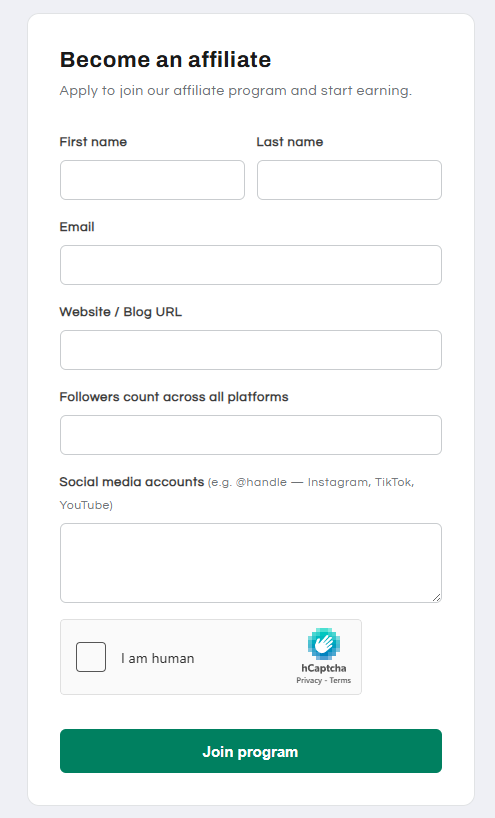
- Public signup form — a form on your storefront where prospective affiliates apply. Toggle it on, then share the signup form link anywhere you recruit — your website footer, social bios, outreach emails. Pro merchants can customize the form's fields and appearance.
- Auto-approve affiliates after application — approve every application automatically. Leave this off if you want to review applicants first (recommended for most stores).
05
Recruiting and managing partners
The Partners page is home base for every referrer and affiliate — pending and active. Use the Pending and Approved tabs to review new applications.
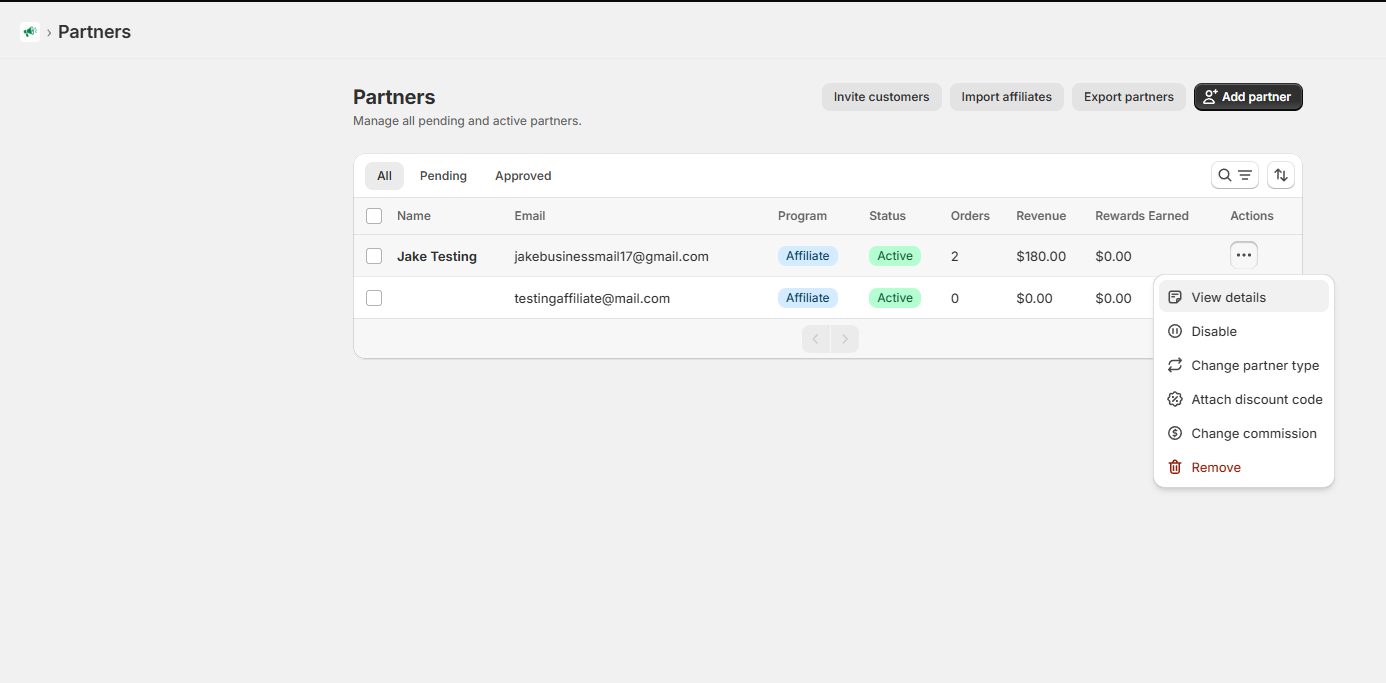
Four ways to add partners
- Approve applications — applicants from your signup form appear under Pending for you to approve or reject.
- Add partner — manually create a partner with their name, email, and program. Use this when you've already agreed to work with someone.
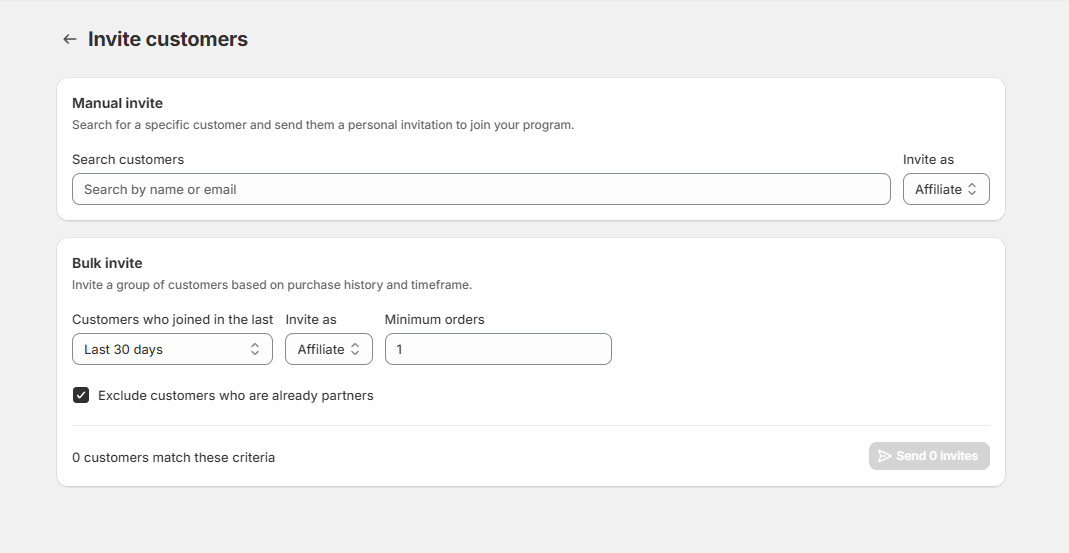
- Invite customers — invite existing customers individually by name or email, or send a bulk invite filtered by signup date and minimum order count. Customers who are already partners are excluded automatically. Bulk invites are a Pro feature.
- Import affiliates — moving from another affiliate app? Upload a CSV with
email,first_name,last_name, andcodecolumns (all four required). Affiliates are created active, with each row's existing Shopify discount code attached — so your partners' codes keep working without interruption. A CSV template is available on the import page.
Per-partner actions
The ⋯ menu next to each partner lets you:
- View details — see their program, status, join date, orders, revenue, rewards earned, commission rate, discount codes, referral link, and PayPal email in one place.
- Disable — pause a partner without deleting their history.
- Change partner type — move a partner between the referrer and affiliate programs.
- Attach discount code — attach an existing Shopify discount code to the partner so sales through that code are attributed to them.
- Change commission — set a custom commission rate for an individual affiliate.
- Remove — delete the partner from your program.
You can also Export partners to CSV at any time from the Partners page.
06
How tracking and attribution work
Every partner gets two ways to send you sales, and both attribute orders to them automatically:
- Referral links — each partner has a base link in the form
https://yourstore.com?ref=CODE. They can also generate links that point to specific product pages. When a customer clicks the link and places an order in the same browsing session, the order is attributed to that partner. - Discount codes — orders where a partner's discount code is applied are attributed to that partner, and the customer gets their discount.
When link and code disagree, the link wins. If a customer arrives through one partner's referral link but checks out with a different partner's discount code, the order is attributed to the partner whose link the customer came through.
Two things to know
- Attribution is session-based. A referral link click attributes orders placed during that browsing session. If the customer leaves and comes back later in a new session without clicking the link again, the order won't be attributed via the link (though a discount code will still attribute it).
- The tracker embed must be active in your theme. It's the component that reads referral links and attributes orders. You can activate it from the setup wizard or anytime under Settings → General → Tracking.
07
Commissions, rewards, and the 14-day pending period
Every commission and reward goes through the same lifecycle, built around one rule: all commissions and rewards stay pending for 14 days after the order. This window protects you from paying out on orders that get refunded.
Where you see this
The Orders page lists every order attributed to a partner, with the order total, the partner, their share, and its current status:
| Status | Meaning |
|---|---|
| Pending | Inside the 14-day window. Not yet payable. |
| Due | Cleared the 14-day window. Will be included in the next payout. |
| Paid | Included in a payout that has been paid. |
| Applied | Referrer rewards only: the store credit or discount has been issued to the referrer. |
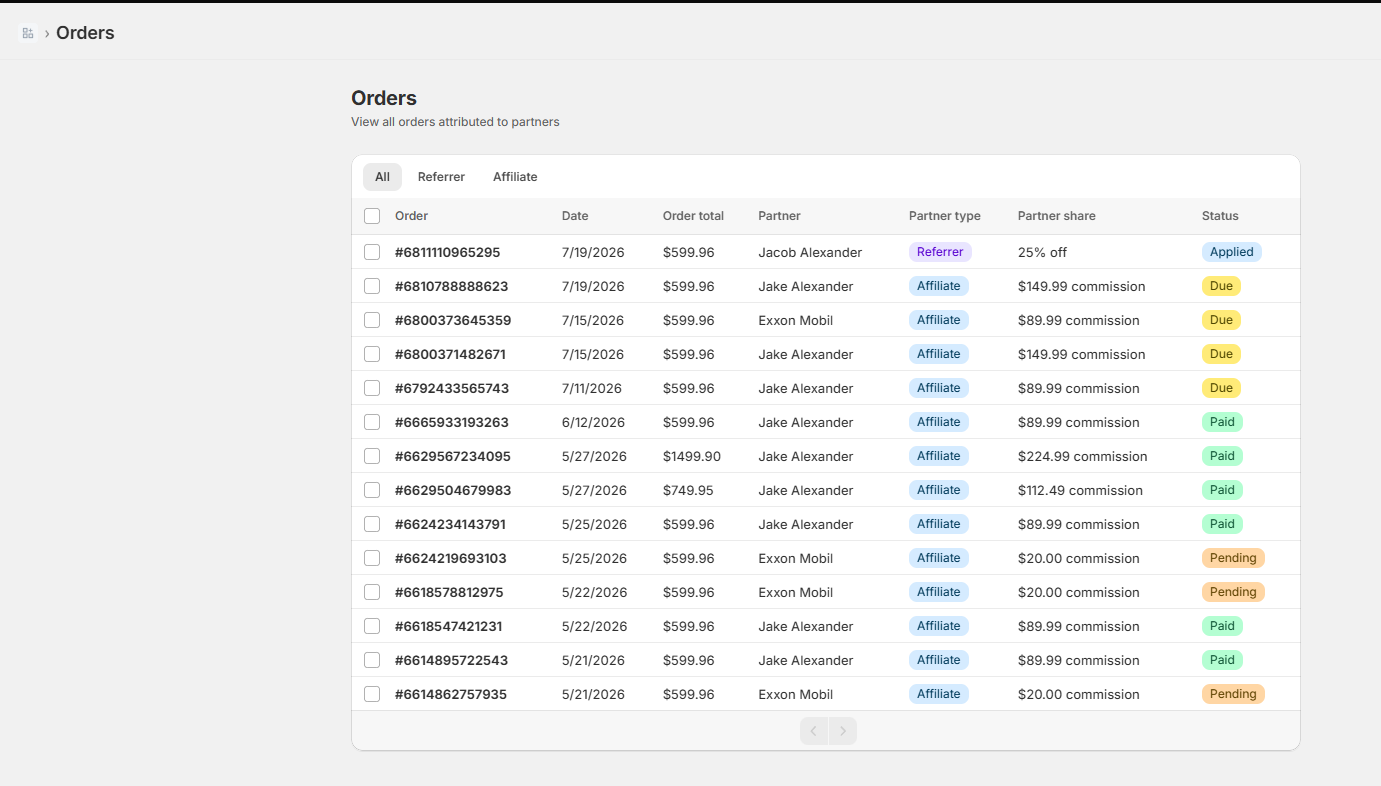
Referrer store-credit rewards follow the same 14-day rule — the credit is applied automatically once the reward clears.
08
Payouts
When payouts are generated
The app generates payouts twice a month, on the 1st and the 16th. Here's the logic on each payout date:
- As commissions clear their 14-day window, they're added to the affiliate's balance for the next payout.
- On the 1st or 16th, if an affiliate's cleared balance meets your payout threshold (default $50), a payout bill is generated in the app.
- If the balance is below the threshold, it simply carries over and keeps accumulating until a payout date where the threshold is met.
Paying manually: bank transfer or PayPal
On any plan, you can pay affiliates yourself and record it in the app:
- Open Payouts to see every generated bill with the affiliate, amount due, and payment method.
- Use Export to download payout details — or PayPal Export, which produces a file in PayPal's Mass Payments format ready to upload to PayPal.
- Send the money through your bank or PayPal account.
- Click Mark as paid on each bill to record it. The affiliate's orders move to Paid and they receive a payout confirmation email.
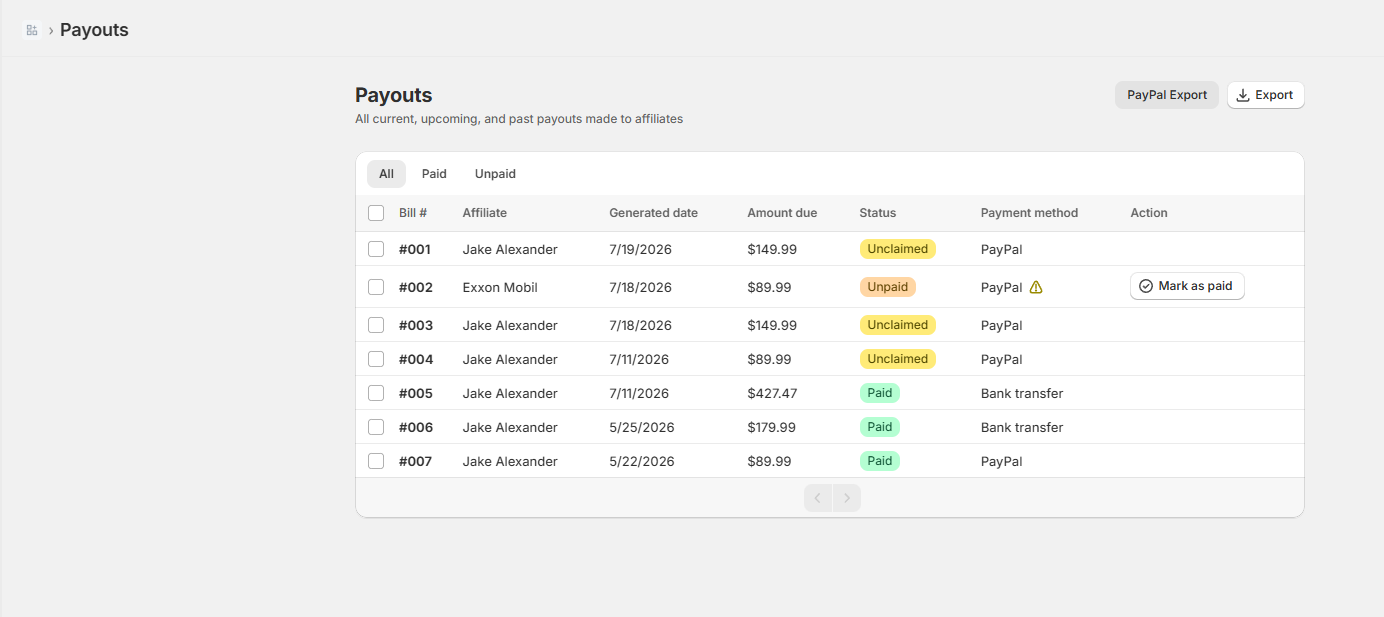
Paying automatically with PayPal Pro
On the Pro plan, the app can send payouts automatically from your own PayPal balance. This requires a one-time connection between the app and your PayPal Business account:
-
Create (or log in to) a PayPal Business account
A personal PayPal account won't work — automatic payouts require Business.
-
Create a REST app in the PayPal Developer dashboard
Open Apps & Credentials and create a REST app. When creating it, choose the Live environment (not Sandbox) and the Merchant account type (not Platform).
-
Copy the Client ID and Secret into EZ Affiliate
In the app, go to Settings → Affiliate Program Settings → Connect PayPal and paste both values. The Secret is the REST app's secret from PayPal — not your PayPal password — and it's encrypted before being stored.
-
Ask PayPal to enable the Payouts API on your account
PayPal approval can take a few hours to a few days. Your saved credentials keep working while you wait — once it's enabled, click Test connection in the app to finish.
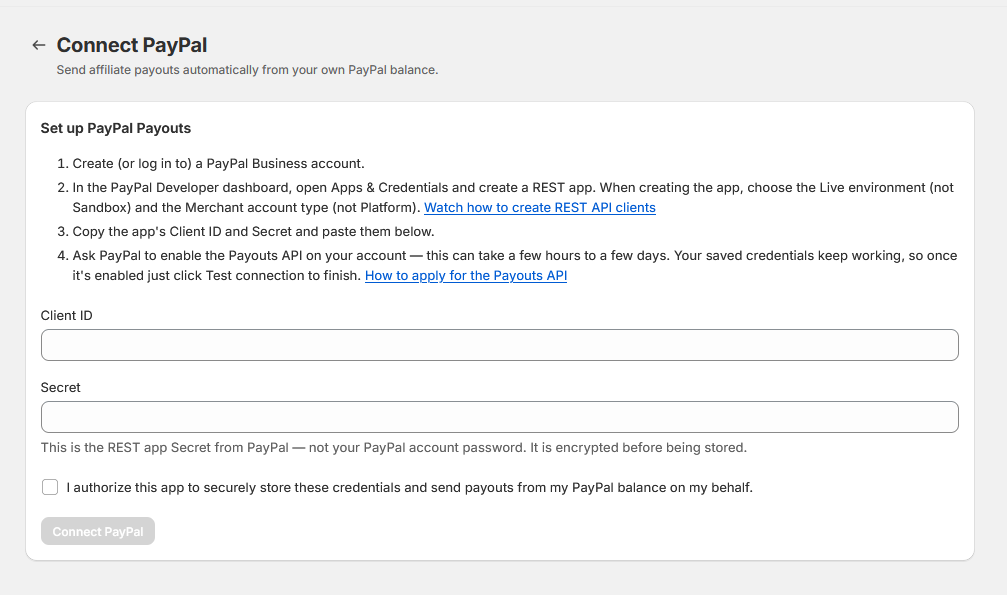
Payout statuses
| Status | Meaning |
|---|---|
| Unpaid | The bill is generated and ready, but the payment hasn't been sent yet. For manual methods, this is where you export, pay, and mark as paid. |
| Unclaimed | A PayPal payment was sent to an email address that doesn't have a PayPal account yet. The affiliate needs to create a PayPal account with that email to claim the money. |
| Paid | The payout is complete. |
Tax reporting: for payouts sent through PayPal, PayPal acts as the payment processor and handles 1099-K tax reporting for eligible affiliates. For questions about your own tax obligations, check with your tax professional.
09
What your affiliates see
Affiliates manage everything from the affiliate dashboard — a page inside your store's customer accounts portal, so there's no third-party login to deal with. Once you've added the dashboard block (from the setup wizard or affiliate settings), any logged-in customer who is an approved affiliate sees:
- Snapshot — pending earnings, earnings due, amount paid out, and lifetime earnings at a glance.
- Affiliate info — their commission rate and payout method.
- Top products — which products they're driving the most orders and revenue for.
- Discount codes — their active codes, plus the ability to create custom code names tied to their account.
- Link generator — their base referral link, plus a tool to generate referral links for specific product pages.
- Payout settings — where they enter the PayPal email their payouts should go to.
- Orders and payments — their attributed orders with commission status, and their payout history.
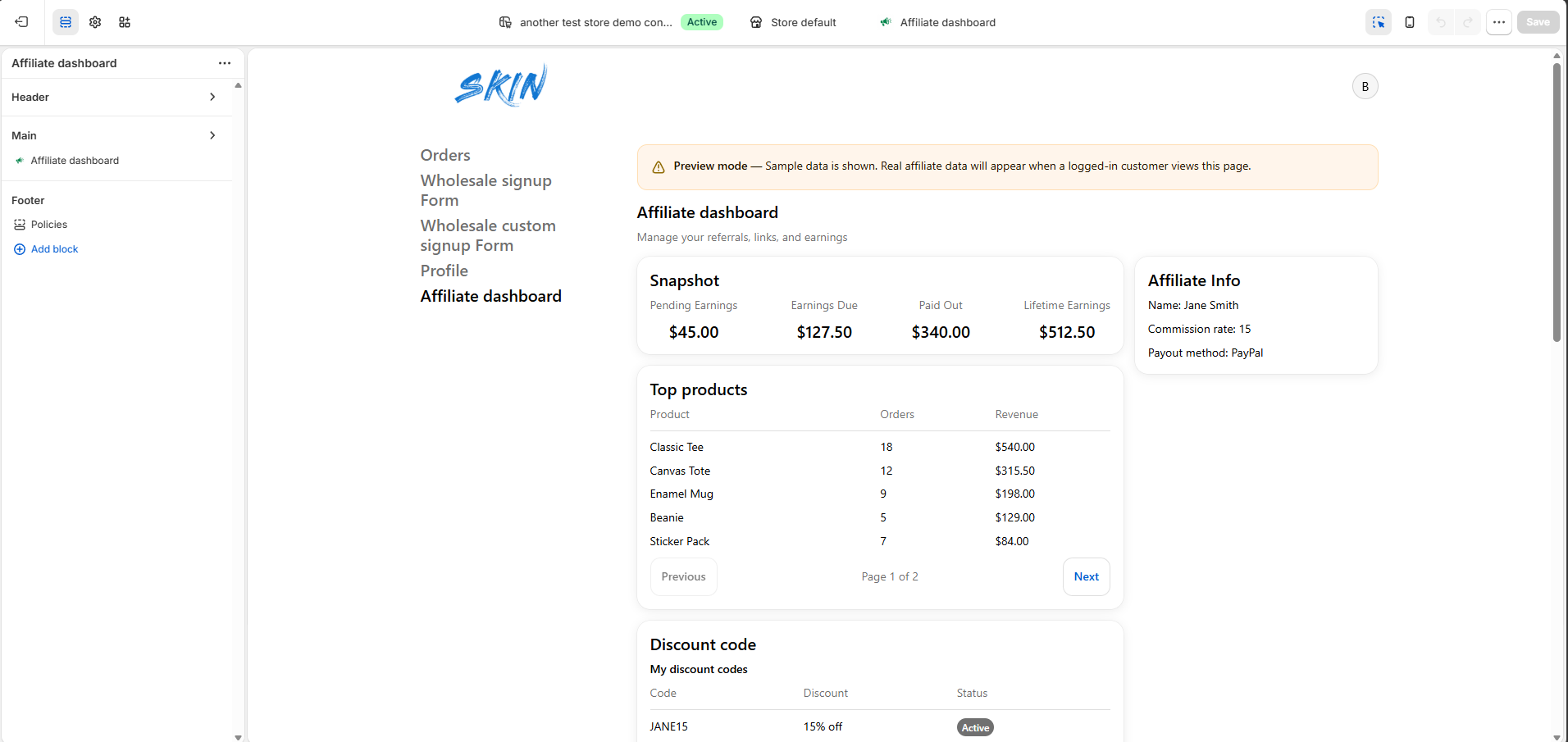
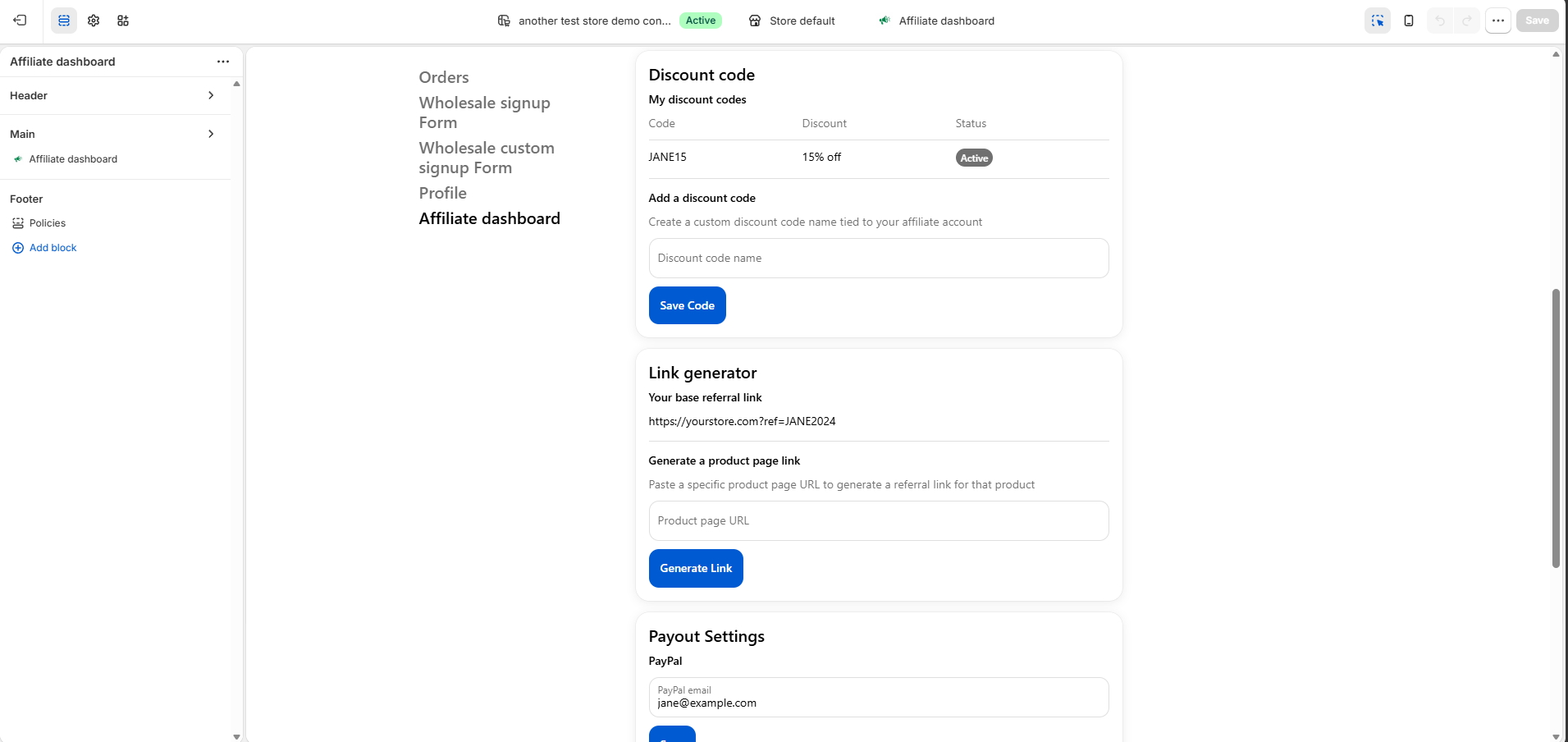
Remind your affiliates to add their PayPal email in payout settings. Payouts can't be sent to an affiliate who hasn't provided one.
10
Email notifications
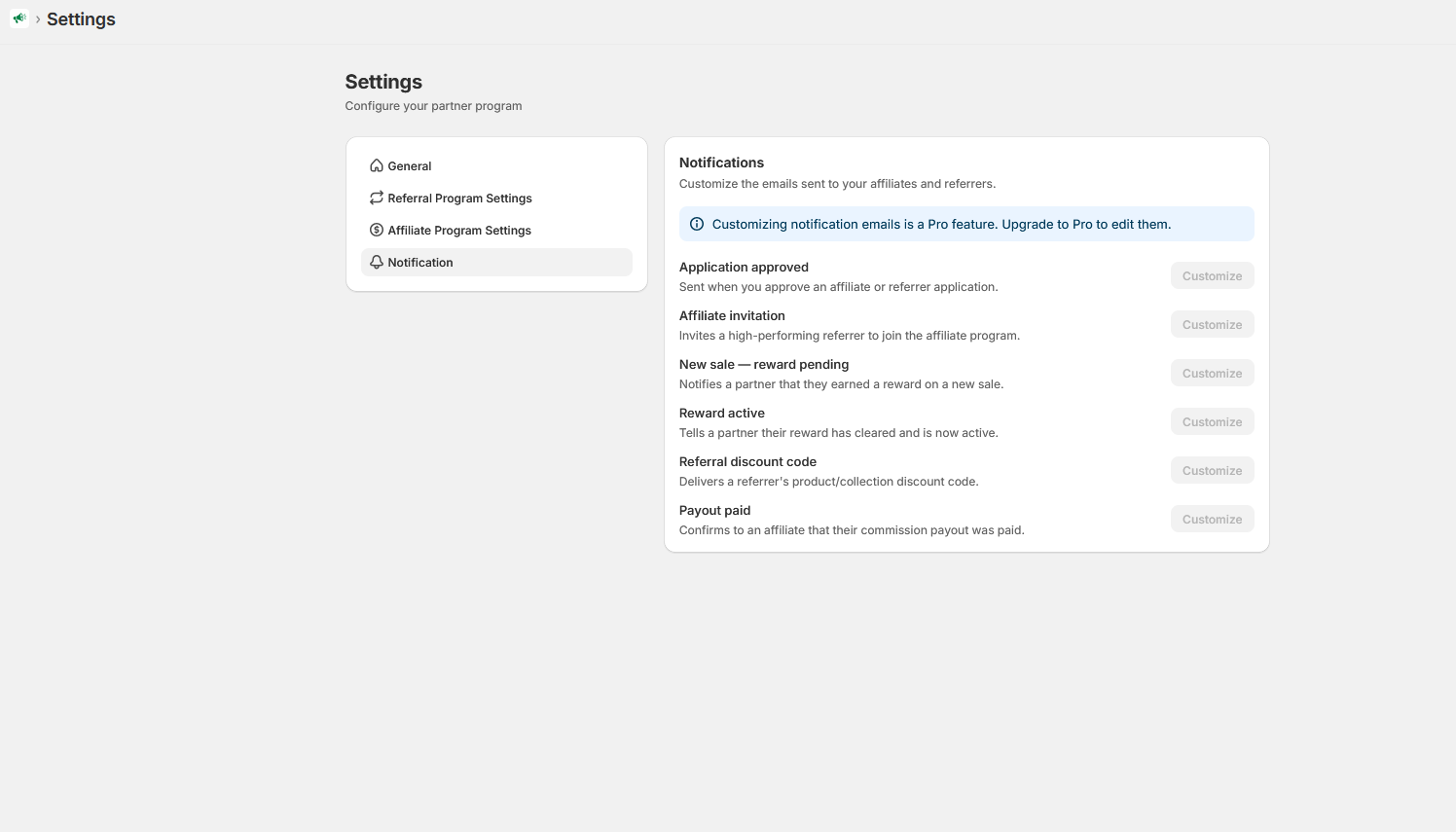
The app sends six emails to your partners automatically. On the Pro plan, you can customize the content of each under Settings → Notification.
| When it sends | |
|---|---|
| Application approved | When you approve an affiliate or referrer application. |
| Affiliate invitation | When a high-performing referrer is invited to join the affiliate program. |
| New sale — reward pending | When a partner earns a reward on a new sale (still in the 14-day window). |
| Reward active | When a partner's reward clears the 14-day window and becomes active. |
| Referral discount code | Delivers a referrer's product or collection discount code. |
| Payout paid | Confirms to an affiliate that their commission payout was paid. |
11
Plans and billing
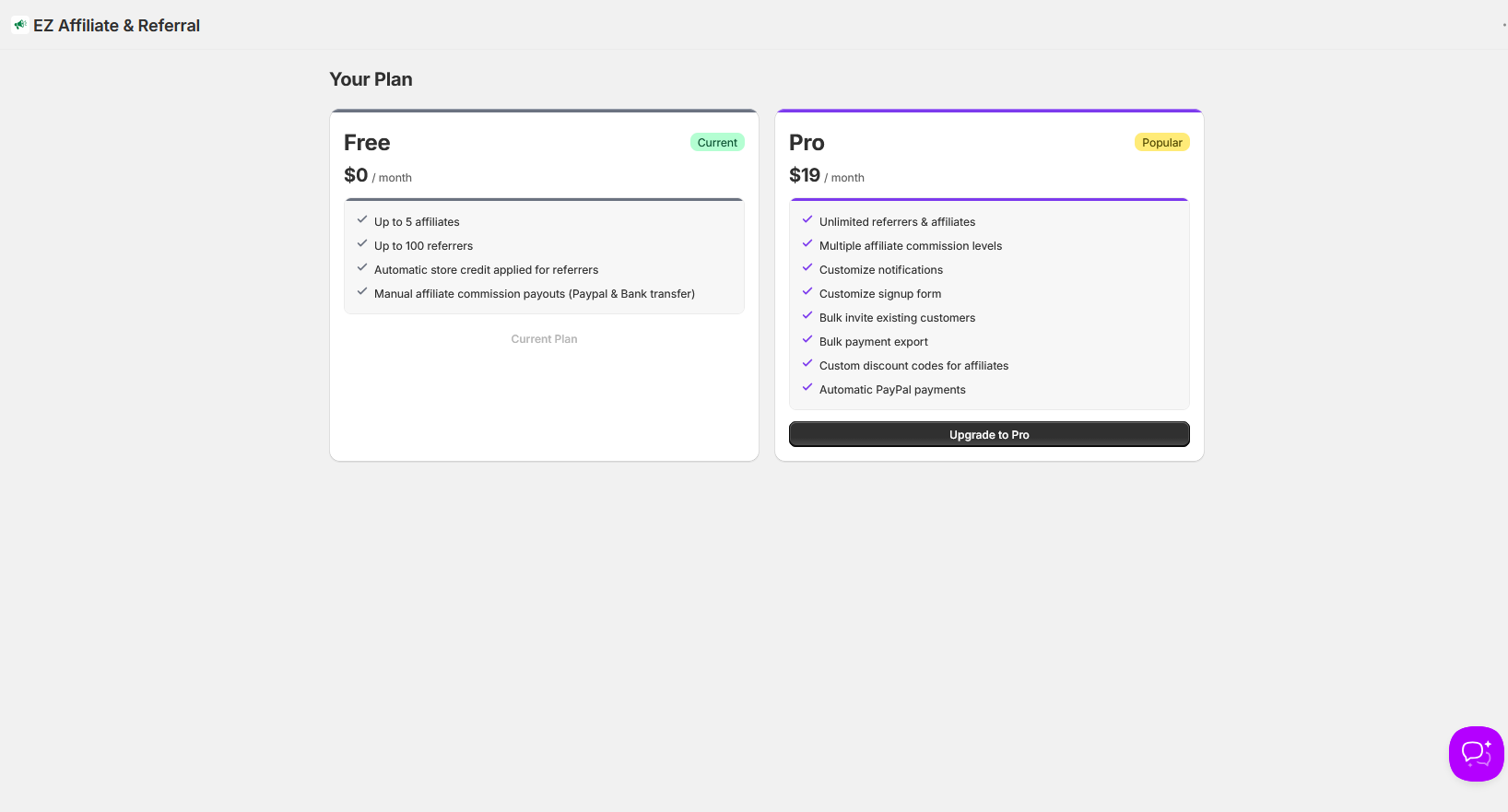
There are two plans. Charges are billed in USD through your Shopify invoice every 30 days, and you can switch plans anytime from the Plan page in the app.
| Free — $0 | Pro — $19/month |
|---|---|
|
Up to 5 affiliates Up to 100 referrers Automatic store credit for referrers Manual affiliate payouts (PayPal & bank transfer) |
Unlimited referrers & affiliates Multiple affiliate commission levels Automatic PayPal payments Customize notification emails Customize the signup form Bulk invite existing customers Bulk payment export Custom discount codes for affiliates |
12
Frequently asked questions
An order came through a partner but isn't showing on the Orders page. Why?
Check these three things in order:
- Is the partner tracker embed active in your theme? Without it, referral links can't attribute orders. Check under Settings → General → Tracking.
- Did the customer buy in the same session as the link click? Link attribution is session-based. If they came back later in a new session without the link or a discount code, the order isn't attributed.
- Did they use a different partner's code after clicking a link? The order will be attributed — but to the partner whose link they used, since links take precedence over a mismatched code.
What happens to a commission if the order is refunded?
If the refund happens during the 14-day pending window, the commission or reward is voided and never clears — the partner isn't paid for it. After a commission has cleared the 14-day window, it becomes due and is included in the next payout.
When exactly do my affiliates get paid?
Payouts are generated on the 1st and 16th of each month, for every affiliate whose cleared balance meets your payout threshold (default $50). Balances under the threshold carry over to the next payout date. On the Free plan, you then pay each bill manually (and mark it as paid); on Pro with PayPal connected, payments are sent automatically from your PayPal balance.
A PayPal payout shows "Unclaimed" — what does that mean?
The payment was sent to an email address that doesn't have a PayPal account. The money is waiting on PayPal's side — your affiliate needs to create a PayPal account using that email address to claim it. It's worth double-checking with the affiliate that the PayPal email in their dashboard is correct.
Can I move a partner between the referrer and affiliate programs?
Yes. On the Partners page, open the ⋯ menu next to the partner and choose Change partner type. You can also let the app do it automatically for high-volume referrers — turn on Auto invite high volume referrers to be affiliates in Referral Program Settings.
Can I bring over affiliates and discount codes from another app?
Yes. Use Import affiliates on the Partners page. Upload a CSV with email, first_name, last_name, and code columns; each affiliate is created active with their existing Shopify discount code attached, so tracking continues without interruption. A CSV template is provided on the import page.
How long does a referral link keep working after someone clicks it?
The link itself never expires — partners can share it forever. Attribution from a click lasts for the customer's browsing session: orders placed in that session are credited to the partner. If a customer returns later in a new session, they'd need to click the link again (or use the partner's discount code) for the order to be attributed.
Do referrers need to do anything to receive their store credit?
No — store credit is applied to the referrer's customer account automatically once their reward clears the 14-day window.
Still stuck? Email support — we usually reply within one business day.